Guide
DEJA.js ThrottleDEJA.jsThrottle

Throttle is both your drive console and your layout manager. Walk through a complete session — connect to your EX-CommandStation, add a locomotive, control speed and direction, throw turnouts, and trigger effects.

Video walkthrough coming soon

Make sure you've completed the Getting Started guide — your server should be running and your EX-CommandStation connected.

Navigation

Navigating the App

Two persistent navigation elements are visible on every screen.

🔝 Header Bar

System-level controls and status at a glance.
Throttle header bar on mobile with numbered callouts
1
2
3
4
5
6
1
Menu — Opens the command palette — search, jump to any page, and drive any loco
2
App Logo — Tap to go home
3
Layout & Status — Active layout, server, and connected devices — tap to open Connect
4
User Profile — Account menu
5
Track Power — Toggles power to the rails
6
Emergency Stop — Immediately halts all trains

🔽 Bottom Navigation

Color-coded icon buttons for quick access. Customize which items appear in Settings.
Throttle bottom navigation bar on mobile with numbered callouts
1
2
3
4
5
6
1
Connections — Server, device, and track power status
2
Roster — Your locomotive collection
3
Throttles — Multi-train grid view
4
Throttle — Single-train precision control
5
Conductor — Three-pane operator station
6
Settings — Appearance, navigation, and connection

Connect

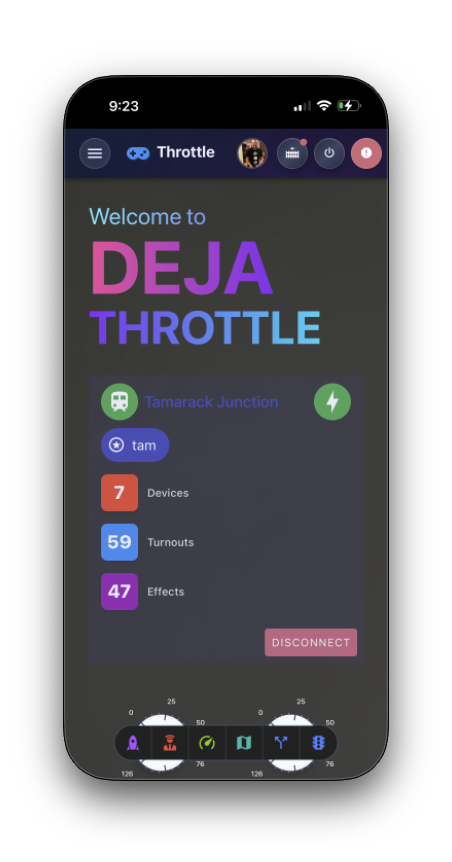
Open Throttle in your browser. The home screen shows your EX-CommandStation's connection status. Green means you're ready to go.
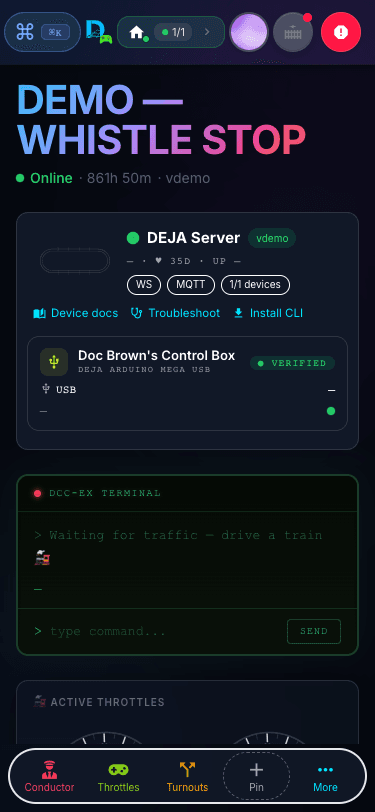
🔌Automatic connection to your DEJA.js server
🟢Status indicators for server, devices, and track power
🕐Speedometer widgets for active throttles
Throttle home screen

Add a Locomotive

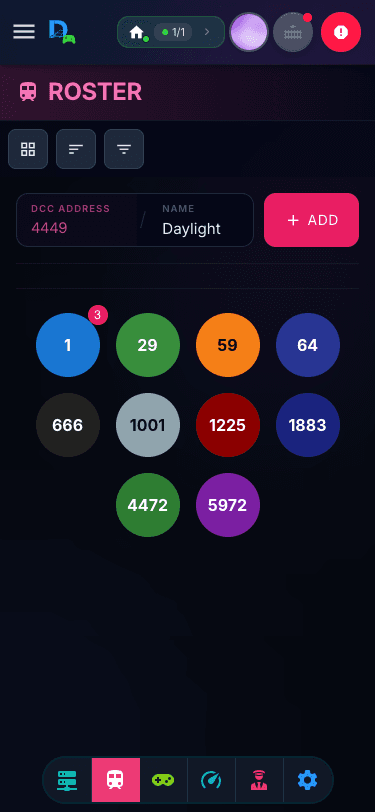
Tap the + button on the throttle list to add a locomotive to your session. Enter the DCC address and a name.

🔢Enter DCC address (1–9999) and locomotive name
🏷️Assign a road name (BNSF, UP, CSX, NS, and more)
🖼️Set an image for the locomotive avatar
⚡Appears immediately in the throttle list

✏️ Set up in Throttle's editors

Full locomotive management happens in the loco editor — snap a photo and let ✨ AI Enrich configure decoder functions (F0–F31), build consists, and toggle onboard sound.
Quick-add form on the Roster screen

Browse Your Roster

The Roster screen shows every locomotive on your layout. Tap one to jump straight into full throttle control.
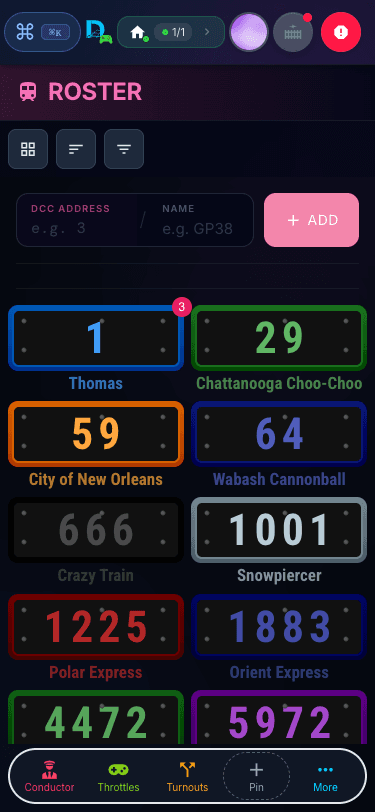
🖼️Photo, name, DCC address, and road name for every locomotive
🔍Searchable across 77 American roadnames — BNSF, UP, CSX, NS, and more
✨AI-enriched details and consists sync to every throttle automatically
👉Tap any locomotive to open full throttle control
Throttle roster screen on mobile

Select a Throttle

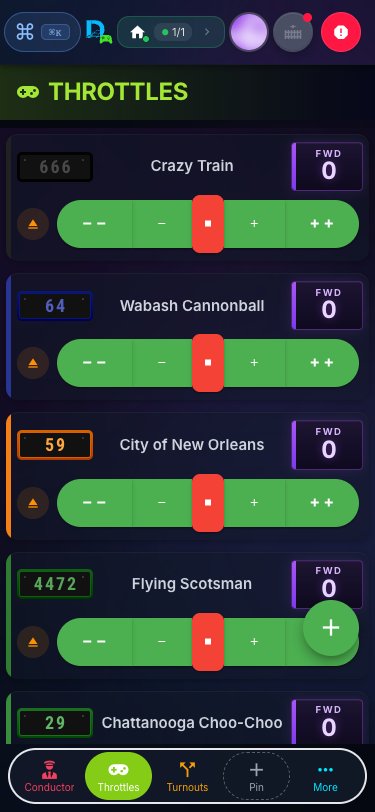
The throttle list shows all locomotives in your session. Tap one to open full throttle control.
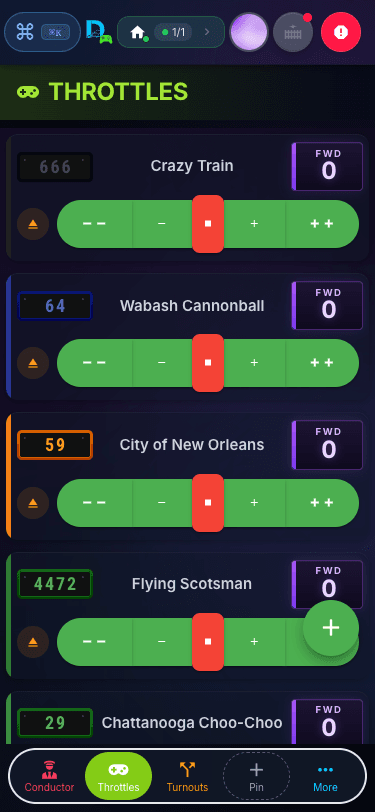
🎴Grid of active throttles with speed, name, and avatar
🔀Drag tiles to reorder (persists between sessions)
🎮Quick control buttons on each tile
📱Responsive — 1 column on mobile, 2+ on desktop
Throttle list with locomotives

Build a Consist with EZ Consist

Link multiple locomotives into one consist and drive them as a single train — no CV programming, no decoder address math.
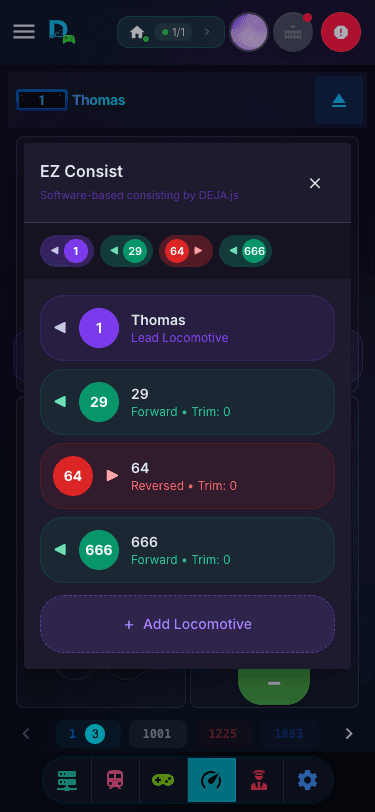
➕Add locos from your roster, forward or backward — works with any DCC loco
🎚️Trim each unit a few steps faster or slower so the lashup pulls together
🚂Drive the whole consist as one — speed, direction, and functions apply to all
🔧Edit, add, or remove units on the go without stopping the train
EZ Consist editor with lead locomotive, direction, and trim

Control Speed & Direction

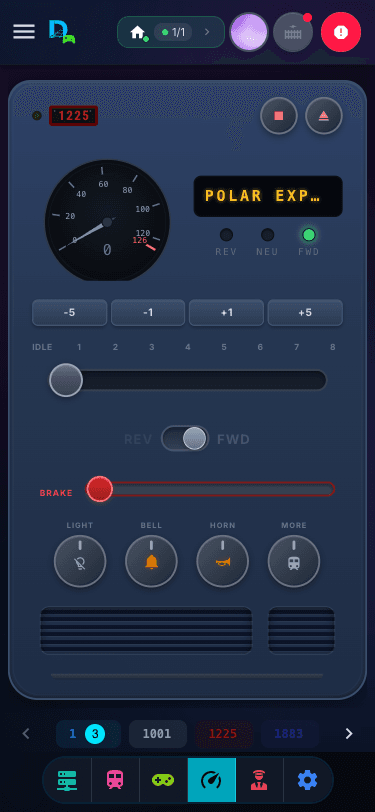
Everything you need to drive. Set speed, change direction, and stop — all from one screen.
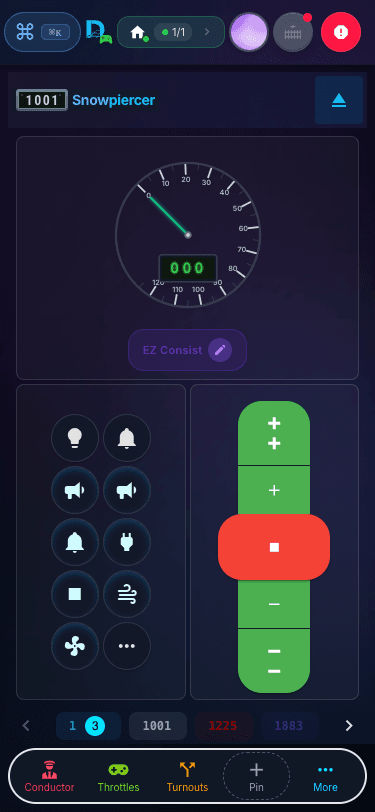
🎚️Speed slider (0–126 DCC steps) on desktop/tablet
🔘5-button speed controls (+5, +1, Stop, −1, −5)
↔️Direction — REV / IDLE / FWD (zero speed only)
🛑Brake control (0–10) for gradual deceleration
👉Swipe left/right between active throttles
⏏️Eject button — stops the loco and releases it
Throttle control screen

Choose Your Throttle Style

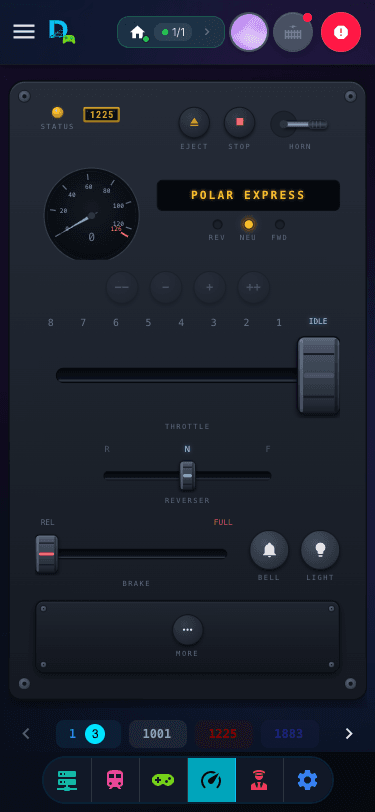
Pick the control style that matches how you operate, from Settings → Throttle → Throttle Type. It applies to every locomotive, and every style shares the same speedometer, function dial, and consist indicator.
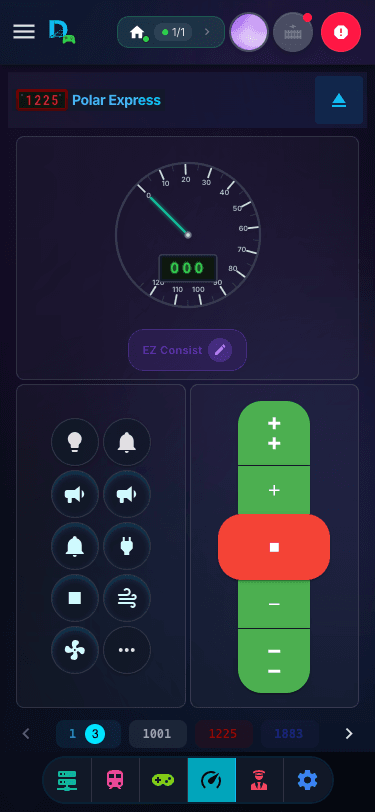
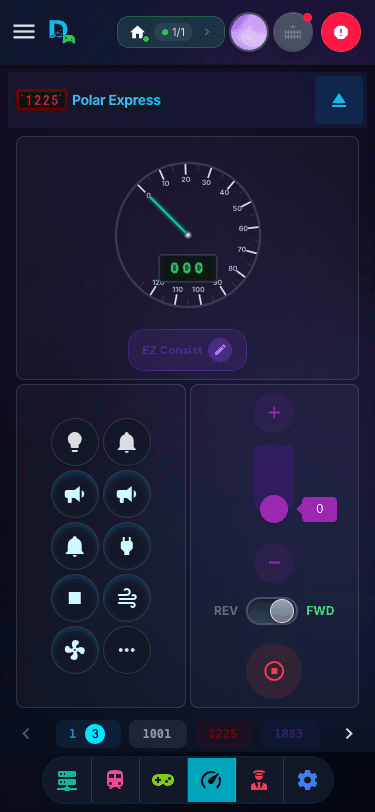
🔘Buttons (default) — five-button speed control, big and simple
🎚️Slider — vertical speed slider with a forward/reverse lever
🎛️Dashboard — skeuomorphic control stand with LCD, brake, and headlight knobs
🕹️Proto — lever-based faceplate inspired by the ProtoThrottle handheld
Buttons throttle style
Buttons
Slider throttle style
Slider
Dashboard throttle style
Dashboard
Proto throttle style
Proto

Use Functions

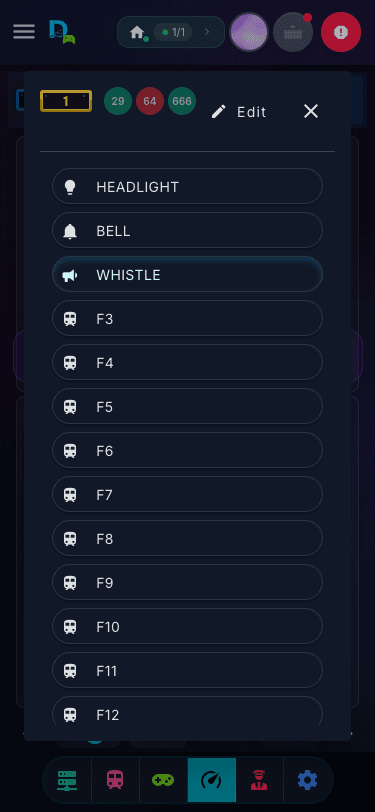
Tap the function button to open the speed dial. Toggle lights, horn, bell, and 30+ decoder features — or tap Edit to remap them right from the throttle.

🎛️Speed dial with up to 32 function buttons (F0–F31)
💡F0: Headlight, F1: Bell, F2: Horn/Whistle
🔧F3–F31: Decoder-specific (brake, coupler, sounds)
✏️Edit mode — tap an icon or label to remap it, right from the dial
🔗Consist display shows linked multi-unit groups
🔊No sound decoder? Default sounds play through your server instead — if your layout is equipped for audio

✏️ Set up in Throttle's editors

Function labels, icons, and visibility can also be configured — or AI-suggested from a photo — per locomotive in the loco editor.
Function speed dial expanded

Conductor Mode

A three-pane layout designed for large screens. Throttle list, active throttle, and turnouts — all in one view.
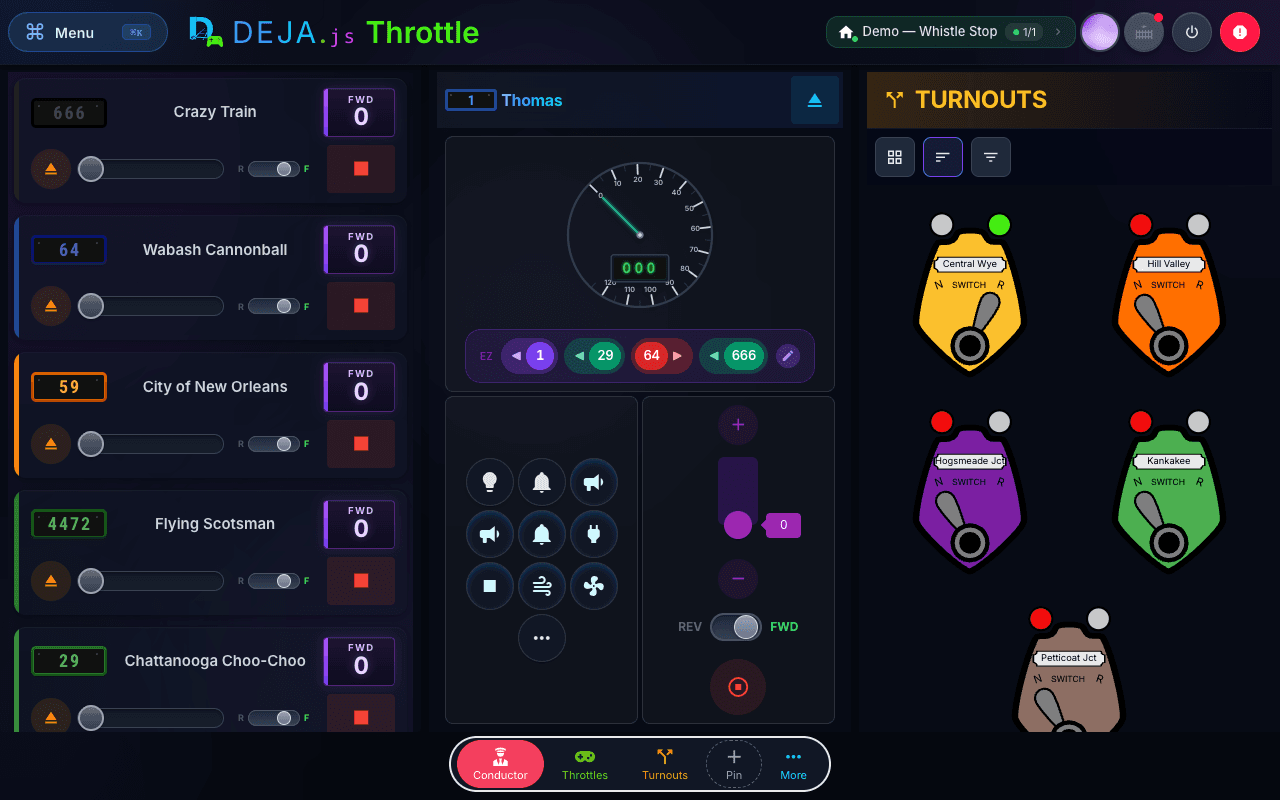
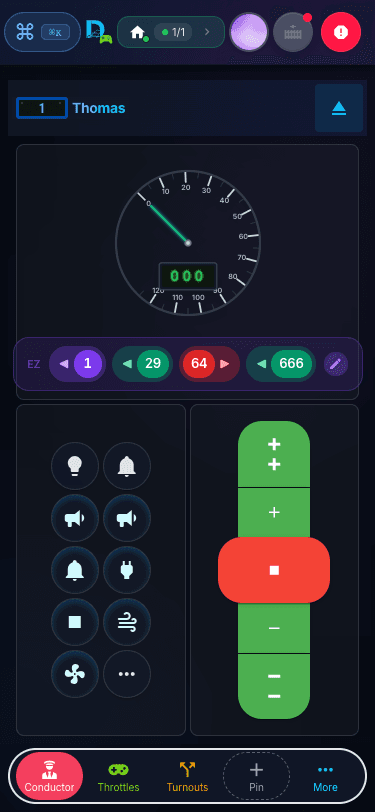
🖥️Three-pane layout: throttle list + active throttle + turnouts
🚂Select any loco from the left panel to control it center
🔀Throw turnouts from the right panel
📱Panes stack vertically on mobile
Conductor mode on desktop
Conductor mode on mobile
Layout Control

Control Your Entire Layout

Beyond driving trains, Throttle gives you control over every aspect of your layout. These features are set up in Throttle's editors and controlled here in real time.

Turnouts

Throw switches with a tap

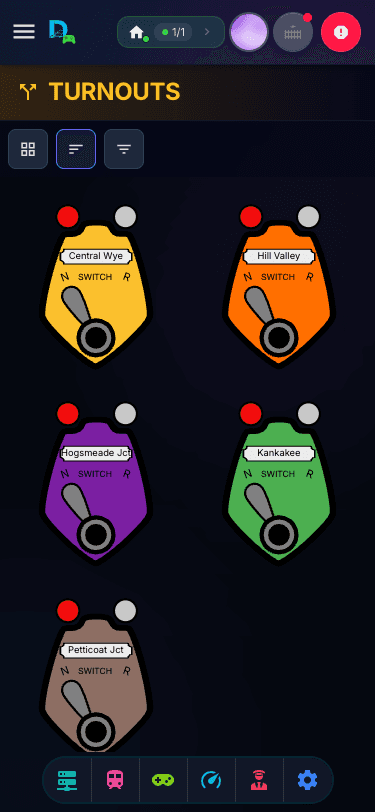
Control every turnout on your layout. Tap to toggle between straight and divergent — color changes instantly to show state. Multiple view modes let you operate the way you prefer.
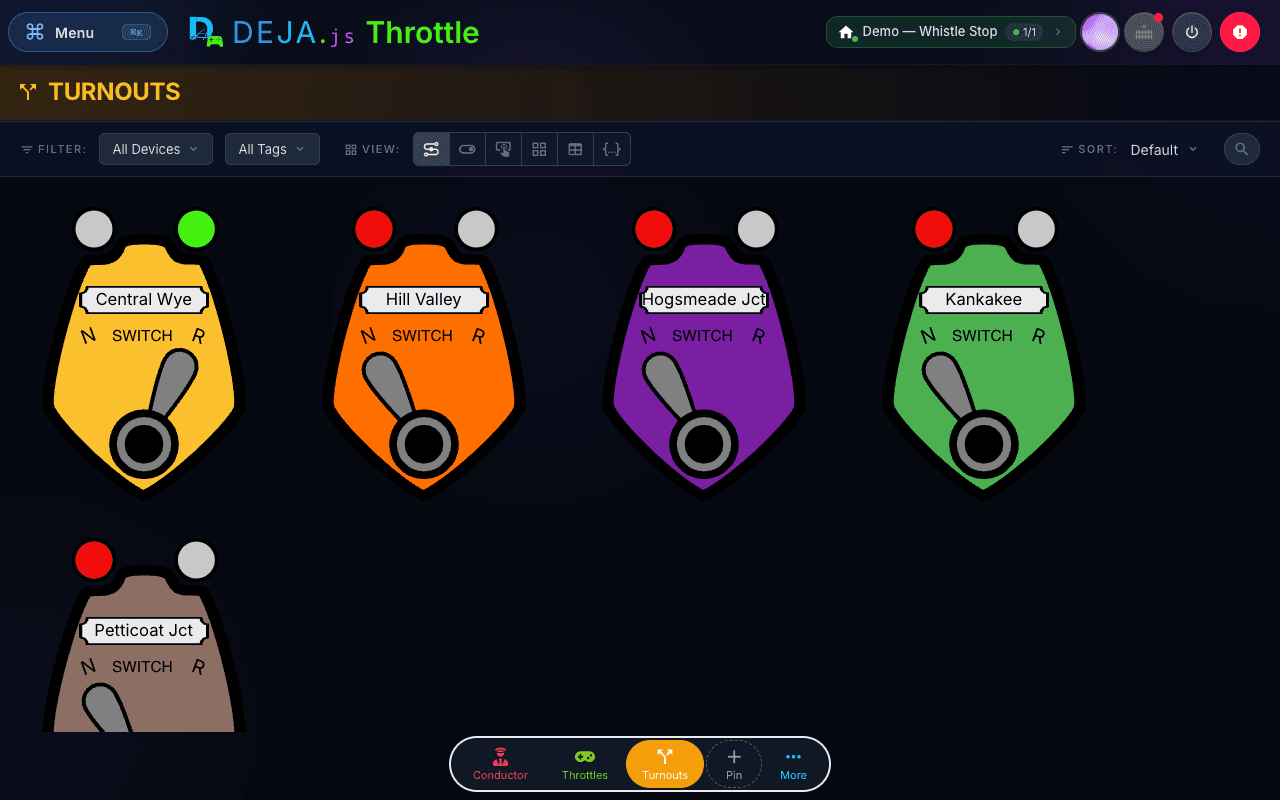
Turnouts desktop view
Turnouts mobile view
🎛️CTC-style lever switches as the default view
🟢Color-coded state — green for normal, amber for reverse
👁️Switch, Button, Card, and Table view modes
🏷️Filter by device, type, or tags
⏱️3-second cooldown prevents accidental double-throws
Customize

Settings

Make Throttle yours. Customize the look, navigation, and connection.

🎨Switch between light and dark themes
📌Choose which pages appear in the bottom nav
🔗Configure server connection URL and port
🏠Select and switch between layouts
👤Manage your account and sign out