
Routes
The Routes screen (/routes) lets you execute predefined routes that automatically throw the correct sequence of turnouts to move a train from one point to another on your layout. Routes are created and managed in the Cloud app and run here with a single tap.
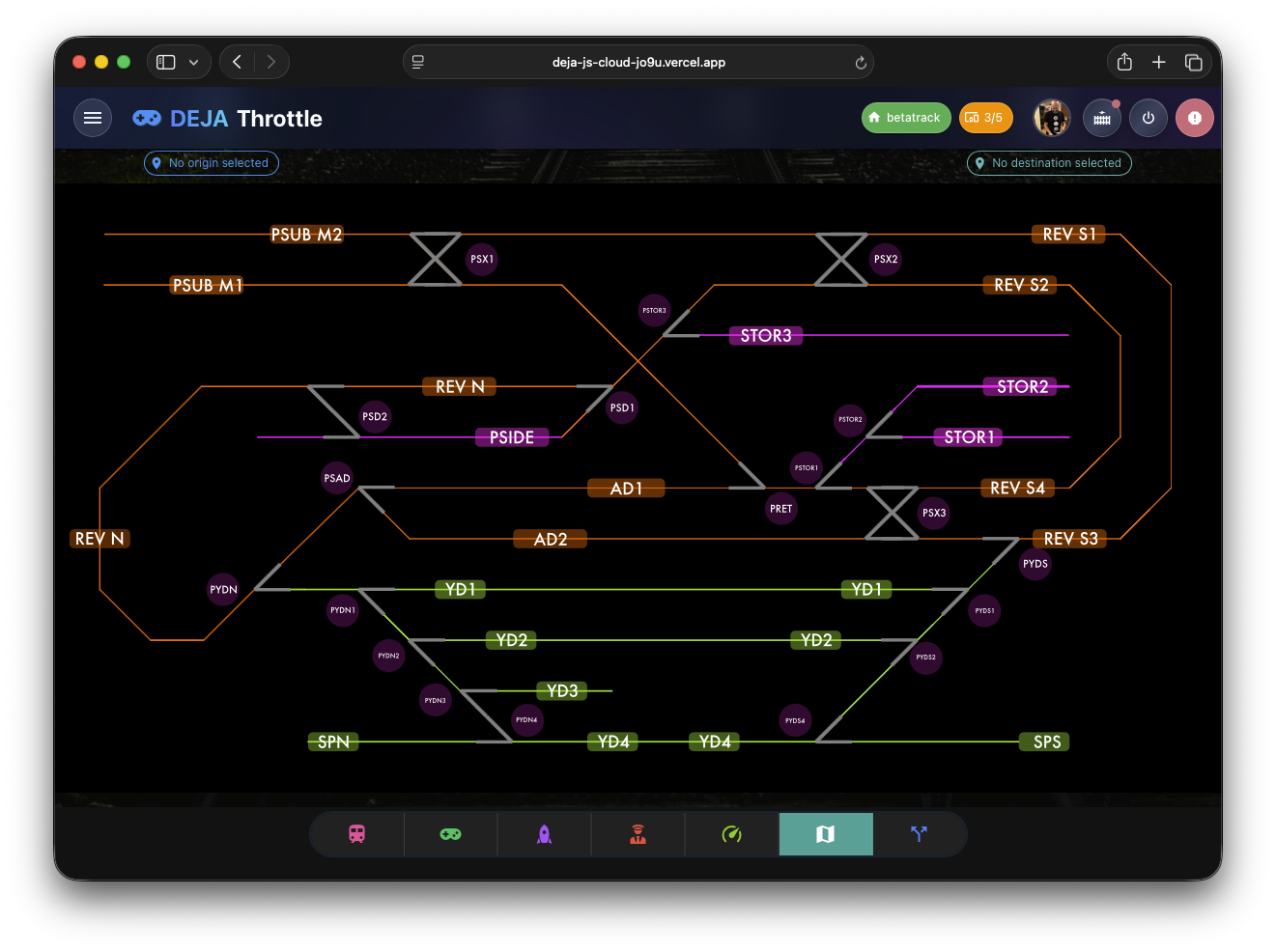
[!NOTE] Earlier versions of this page included interactive SVG track maps for tap-to-select routing. That map view has been retired in favor of the new Track Diagram page, which is where tap-to-route functionality now lives.
Route List
The Routes screen displays your configured routes as a responsive grid of cards -- one column on small screens, two on medium screens, three on large screens. Each route card shows:
- Route name as the card title (falling back to the route ID if no name is set).
- Point chips showing the origin (P1) and destination (P2) with map marker icons.
- Turnout chips showing each turnout in the sequence with its target state (Straight or Divergent).
- Run button to execute the route immediately.
Route cards use a tonal variant with the route's configured color, or cyan as the default.
Running a Route
Tap Run on a route card to execute it. The route's turnouts throw in sequence rather than all at once -- there's a brief delay between each successive throw.
Progress Bar
A progress bar fills from 0 to 100% as each turnout in the running route is thrown, giving you a clear indicator of how far along the sequence is.
Empty State
If no routes are configured for the current layout, the screen shows an empty state. Routes are created and managed in the Cloud app.